 Backtrack
Lost a Claude answer after editing a message? How to find old versions
Short answer: it isn't gone. When you edit a message, Claude starts a new version of the chat from that point and keeps the old one. Scroll to the message you edited and look just below it for small arrows with a counter, like < 2 / 2 >. Click the left arrow to go back to your original message and Claude's original answer.
What happens when you edit a message
A chat with Claude isn't a straight line. When you edit a message (or ask Claude to try again), the chat forks: everything after that point now has two versions. People call these branches. claude.ai shows one branch at a time (right after an edit, the new one) and hides the others behind the arrows on the message where the fork happened.
That's why an answer seems to vanish: the new branch doesn't contain it, but the old branch still does.
Step by step on claude.ai
- Open the chat where you made the edit.
- Find the edited message. Scroll up to the message you changed. Below it you'll see the arrows and a counter such as
2 / 2, meaning "you're on version 2 of 2". - Click the left arrow. The message switches back to your original wording, and everything after it switches to the original answers.
- Save what you need. Copy the answer while that version is showing. Click the right arrow to get back to where you were.
Edited more than once? Each fork has its own arrows. If you edited a message, then edited a later message in the new branch, you may need to switch at the first fork before the second one appears.
Find old versions in your data export
If the chat is long or you edited many times, clicking through arrows gets confusing. Claude's data export has every version: on claude.ai go to Settings → Privacy → Export data. In conversations.json, each message points to the one before it with parent_message_uuid, and two messages with the same parent are two versions.
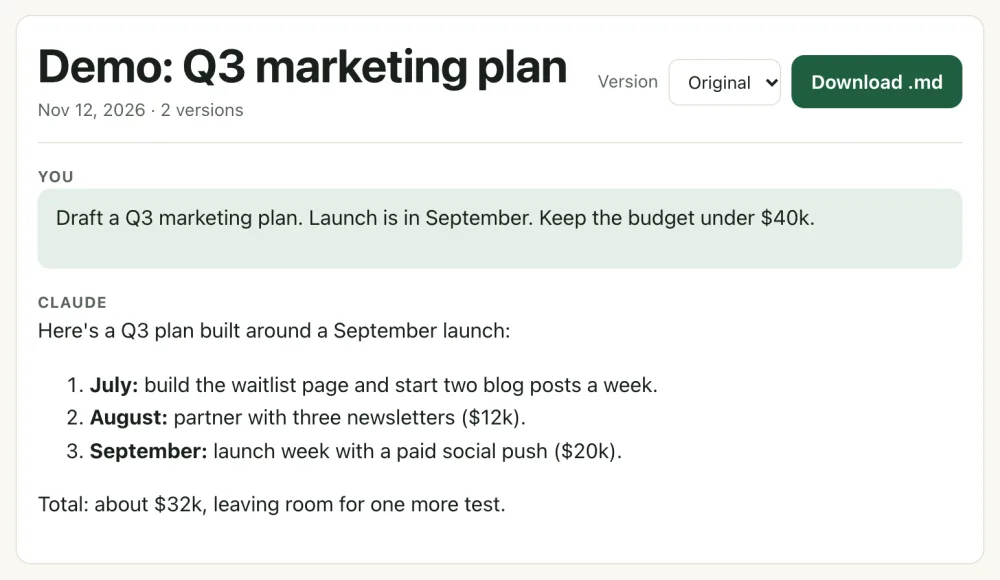
You don't have to read that by hand. Drop the zip into the free Claude Export Viewer: chats with edits show a "2 versions" tag, and a Version menu switches between Original, Edit 1 and so on. Click Download .md to save the one you picked. (See how to read your Claude data export.)
The faster way: every version in one list with Backtrack
Backtrack is a Chrome extension that works inside claude.ai. Open any chat, click the green Backtrack button next to Share, and the This chat tab tells you how many versions the chat has. Click that number to open the Versions view:
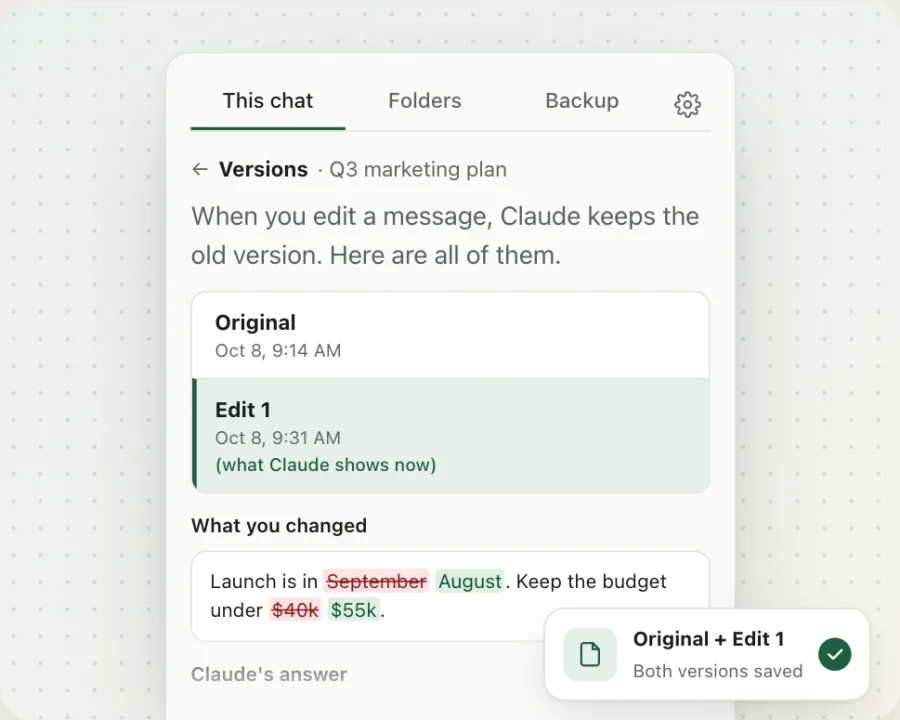
- Every version in one list, with the time and which one Claude shows now. Free.
- What you changed, with the old and new wording marked, plus Claude's answer to each. Free.
- Copy answer and Save this version as .md. Free.
- Save all versions in one file: Pro ($4.99 once), with 3 free tries a week.
Never lose an answer to an edit again. See every version of a chat, free.
Add to Chrome, freeFAQ
Does editing a message in Claude delete the old answer?
No. Claude starts a new version (a branch) from the edited message and keeps the old message and everything after it. You switch between them with the arrows under the edited message.
Are old versions in my Claude data export?
Yes. The export's conversations.json has every message from every version. Each message points to the one before it with parent_message_uuid, and messages that share a parent are different versions. The free Claude Export Viewer lays them out for you.
Can I see every version of a chat at once?
Not on claude.ai, where you step through one fork at a time. Backtrack lists every version of the open chat in one place, for free, and shows what you changed.
Can I save both versions?
In Backtrack, Save this version saves any single version as .md for free. Saving all versions in one file is part of Pro ($4.99 once), with 3 free tries a week.
Related guides
Backtrack is an independent tool. It is not affiliated with, endorsed by, or sponsored by Anthropic. Claude is a trademark of Anthropic. The export steps are from Anthropic's help center as of November 2026.